First look: what is where
The screen has three parts. On the left is a panel with two tabs. Across the top is the toolbar. The rest is the map. The picture marks every button you will use; each one is described in detail further down.
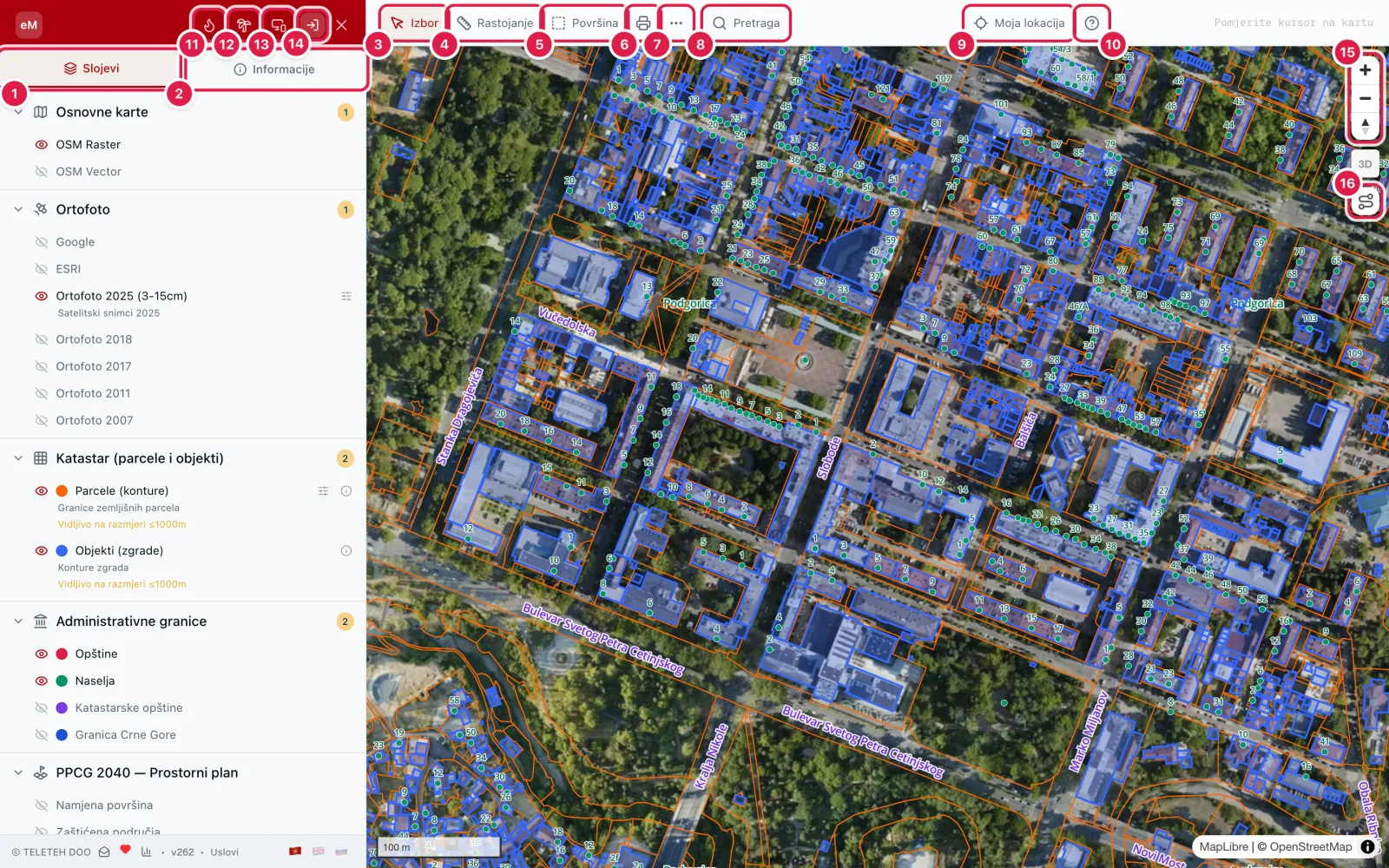
- 1Layers — everything you can show on the map.
- 2Info — details of whatever you clicked on the map.
- 3Select — an ordinary click on the map; selects a parcel or building.
- 4Distance — measure a length.
- 5Area — measure an area.
- 6Export the view as PDF or DXF.
- 7More tools — import a GPS track.
- 8Parcel and address search.
- 9My location — moves the map to where you are.
- 10Help — this guide.
- 11Fire mode.
- 12Sea mode.
- 13Install the app on your phone or computer.
- 14Sign in.
- 15Zoom (+ and −) and compass. The 3D button is right below.
- 16Route with elevation.
Moving around the map
Drag the map to move it. Zoom with the mouse wheel or the + and − buttons. The 3D button turns on terrain and buildings in three dimensions (see the next chapter). The compass turns the map back to north.
My location moves the map to where you are. Your browser asks for permission first. On the right of the toolbar you see the coordinates under the cursor and the current zoom.
eMapa remembers where you left off: next time, the map opens at the same place.
3D view: terrain and buildings
The 3D button turns the map three-dimensional: mountains, valleys and the coastline take their real shape, and buildings from the cadastre rise above the ground. It is the quickest way to see how a parcel sits on the land — on a slope, in a hollow or under a hill — before you go there.
The terrain comes from the Copernicus EU-DEM elevation model (the European Earth-observation programme) and NASA SRTM satellite measurements. Route with elevation uses the same heights. Heights are gently exaggerated (1.5×) so the shape of the land reads better.
- 1Click the 3D button under the zoom buttons (1).
- 2Hold the right mouse button and drag: up and down tilts the map, left and right turns it. On a laptop: Ctrl + drag.
- 3The compass turns the map back to north; click 3D again for the flat map.
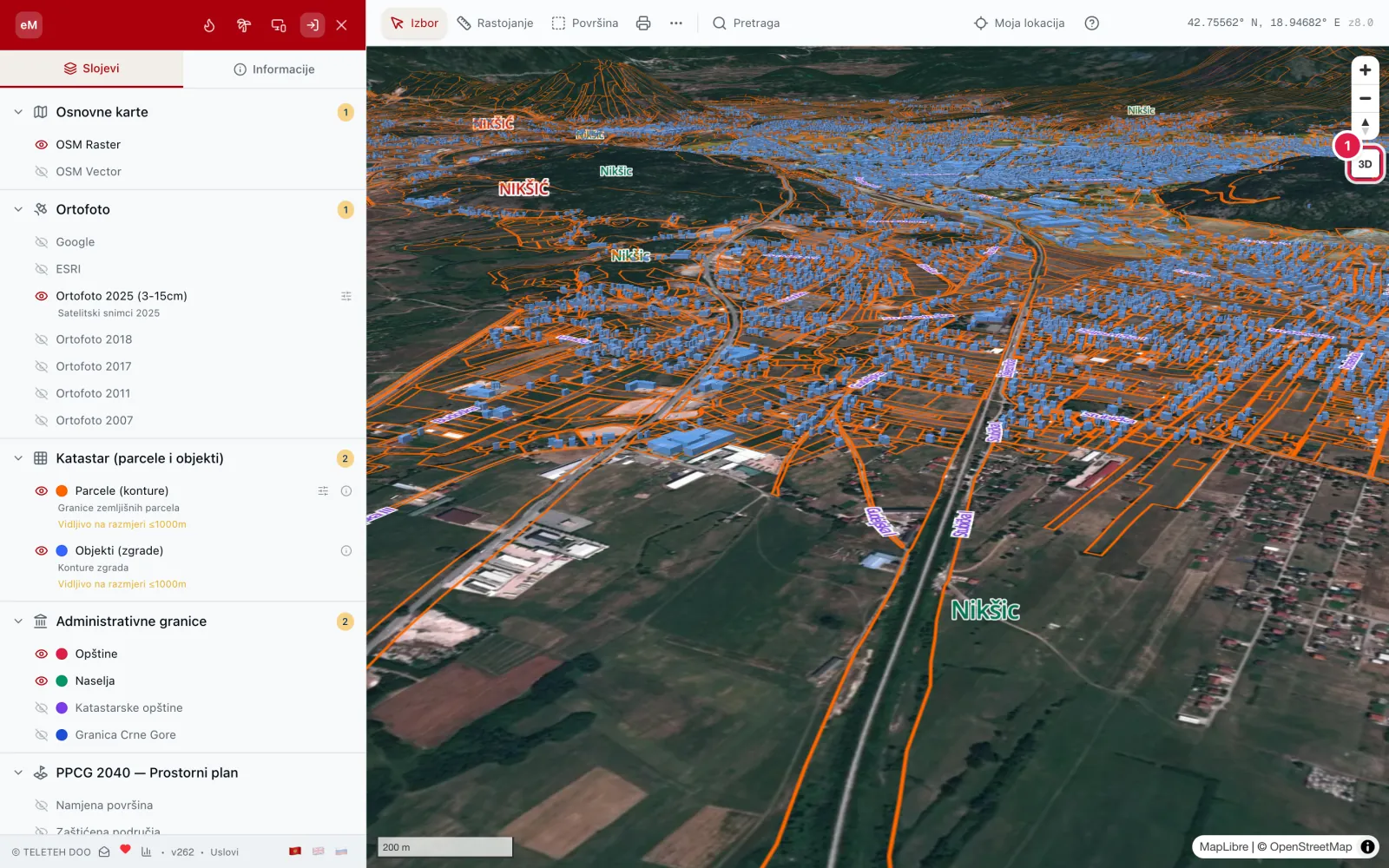
- 1The 3D button — turns the three-dimensional view on and off.
Layers: turning them on and off
The Layers tab holds all the data, in groups: base maps, orthophoto, cadastre, administrative boundaries, PPCG 2040, water, telecoms, topography, addresses, nature and ecology, risks.
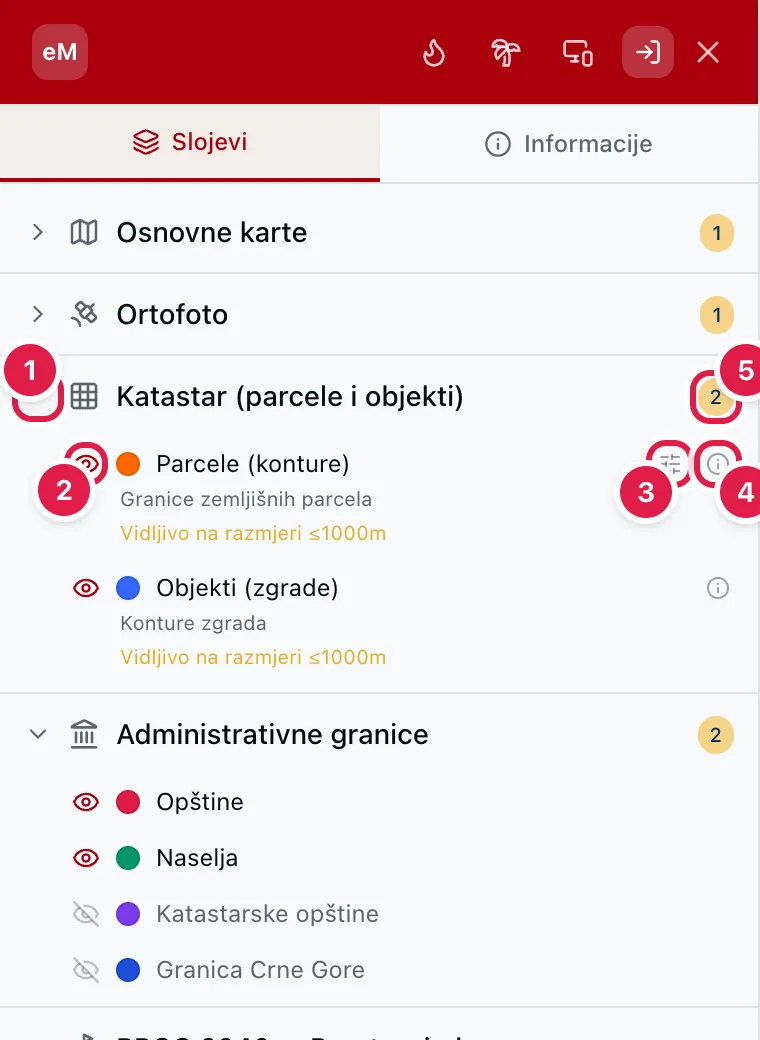
- 1The arrow opens and closes a group.
- 2The eye turns a layer on and off. A crossed-out eye means the layer is off.
- 3Layer settings — opacity, and for parcels also numbers and areas (see the next chapter).
- 4"i" — the layer's description, data source and last update.
- 5The number in the circle shows how many layers of the group are on.
Layer settings: opacity, parcel numbers and areas
Every layer has its own settings. The most used are opacity and, for parcels, showing each parcel's number and area right on the map.
- 1In the Layers tab, find Parcels (outlines) in the Cadastre group.
- 2Click the settings icon to the right of the layer name (1).
- 3Click Numbers and areas (2). Every parcel on the map now shows its number and area.
- 4Click Numbers and areas again to turn them off.
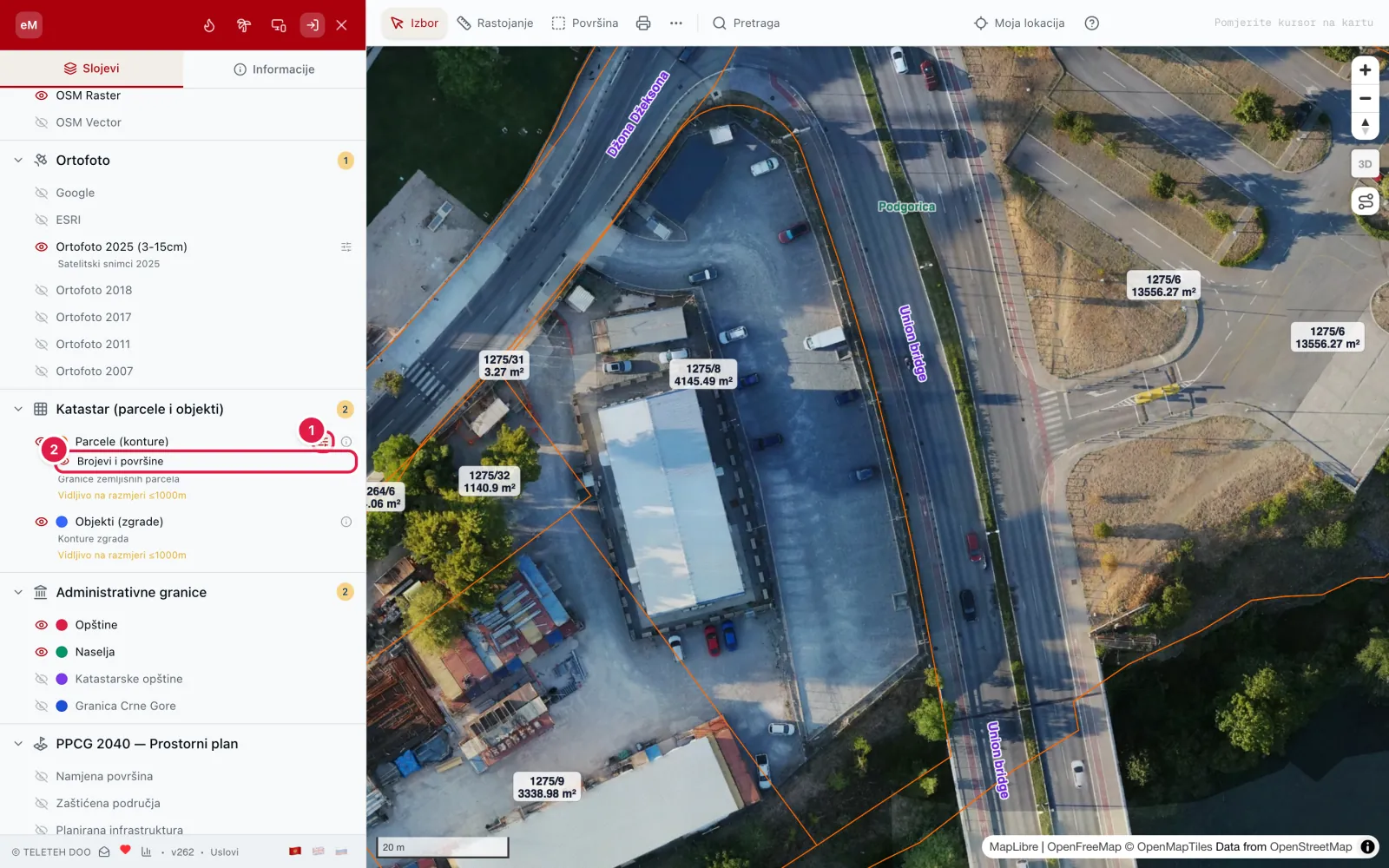
- 1Settings icon of the Parcels layer.
- 2Numbers and areas — turns the parcel labels on and off.
Parcel and address search
Find a parcel by its number, or a building by its address.
- 1Click Search in the toolbar (1).
- 2Choose the municipality (2).
- 3Choose the cadastral municipality, KO (3).
- 4Type the parcel number, for example 1406 or 1406/2 (4).
- 5Click the search button (5). The map moves to the parcel and highlights it.
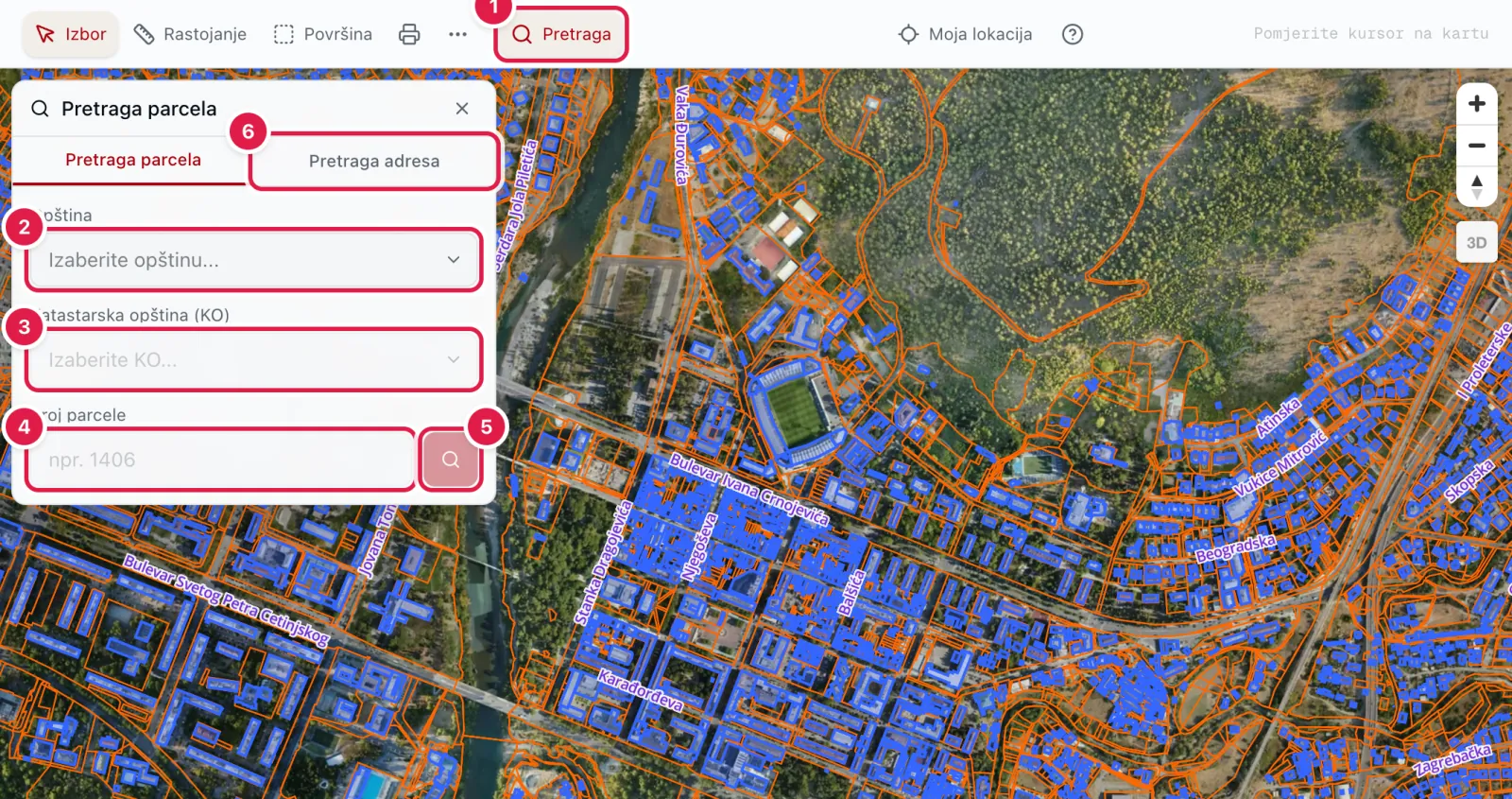
- 1The Search button.
- 2Municipality.
- 3Cadastral municipality (KO).
- 4Parcel number.
- 5Run the search.
- 6The Address search tab: municipality, settlement, street and house number.
Parcel information
Click a parcel on the map. The Info tab shows the parcel number, coordinates and area, the cadastral details (district, cadastral municipality, municipality), the land use set by the PPCG 2040 spatial plan and the environmental constraints that apply at that location.
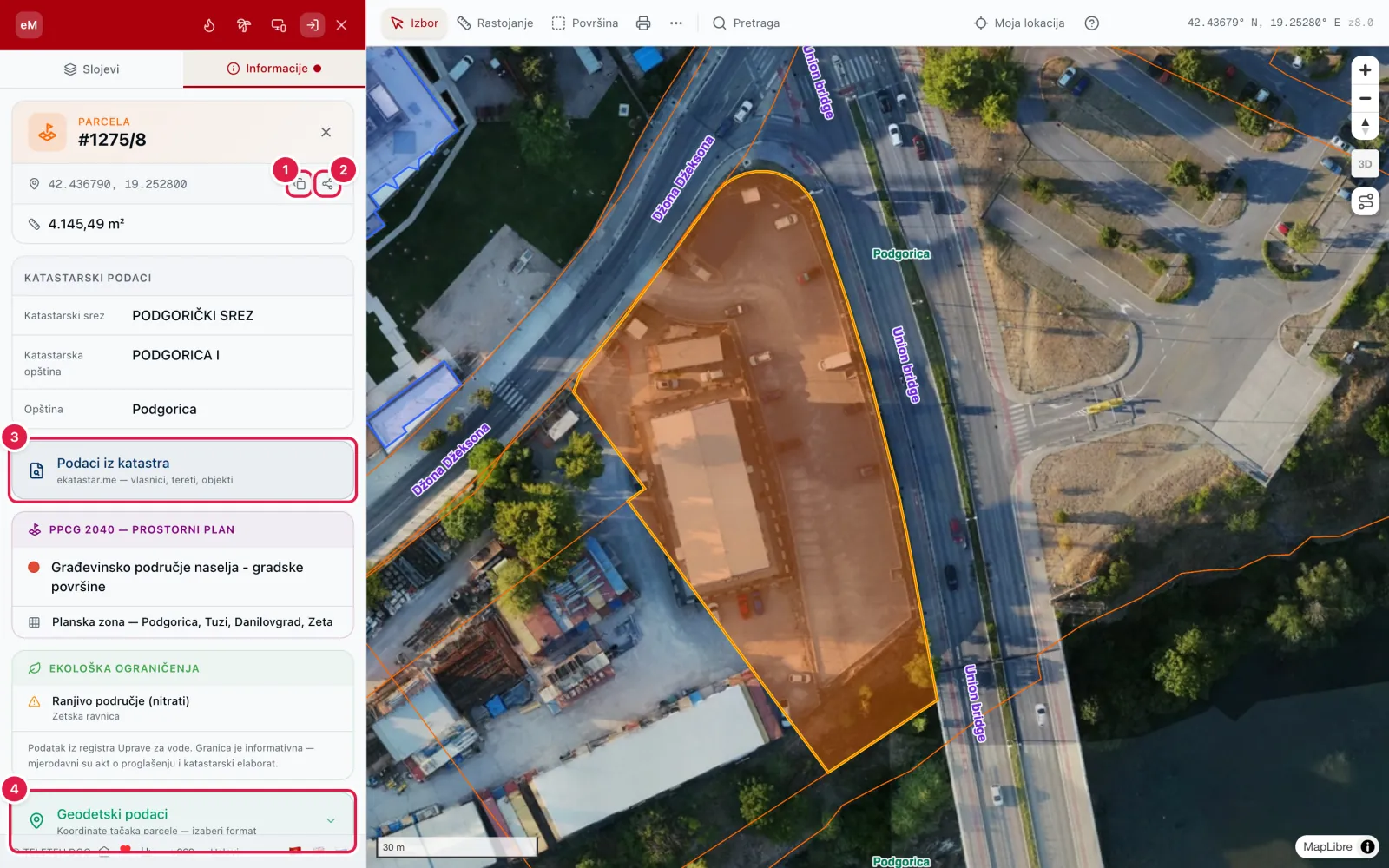
- 1Copy the coordinates.
- 2Share a link — whoever opens it sees exactly this parcel.
- 3Cadastre records — owners, sheets, encumbrances (see Cadastre records).
- 4Geodetic data — coordinates of the corner points (see For surveyors).
Parcel environment
The Environment block in the Information tab is collapsed. Its header shows the number of findings, the soil type and a water sign when the parcel is in a flood zone or a water-source zone. Click the header to open it.
Protection and risks are computed over the whole parcel, not the clicked point: protected nature, environmental pressures, PPCG 2040 protection zones, flood zones, water-source protection zones (zones I, II and III) and soil type. Each zone shows the share of the parcel it covers.
Below are terrain (elevation, slope, aspect), land cover (trees, grassland, cropland, built-up) with canopy density and the broadleaf and conifer share, what satellites see growing on the parcel and within about 1 km, the growing season, soil properties (pH, organic matter, texture, nitrogen, available water), crops that suit the climate and soil, with sowing months and whether rain alone is enough, and the solar plant yield and wind.
The printer button in the block header opens the Parcel environmental report — a separate A4 document with the same data, ready to print or save as PDF.
Several parcels at once
On a computer you can select several parcels together: hold Ctrl (Cmd on a Mac) and click the parcels. All selected parcels are highlighted on the map and listed in the panel.
An ordinary click without Ctrl selects a single parcel again.
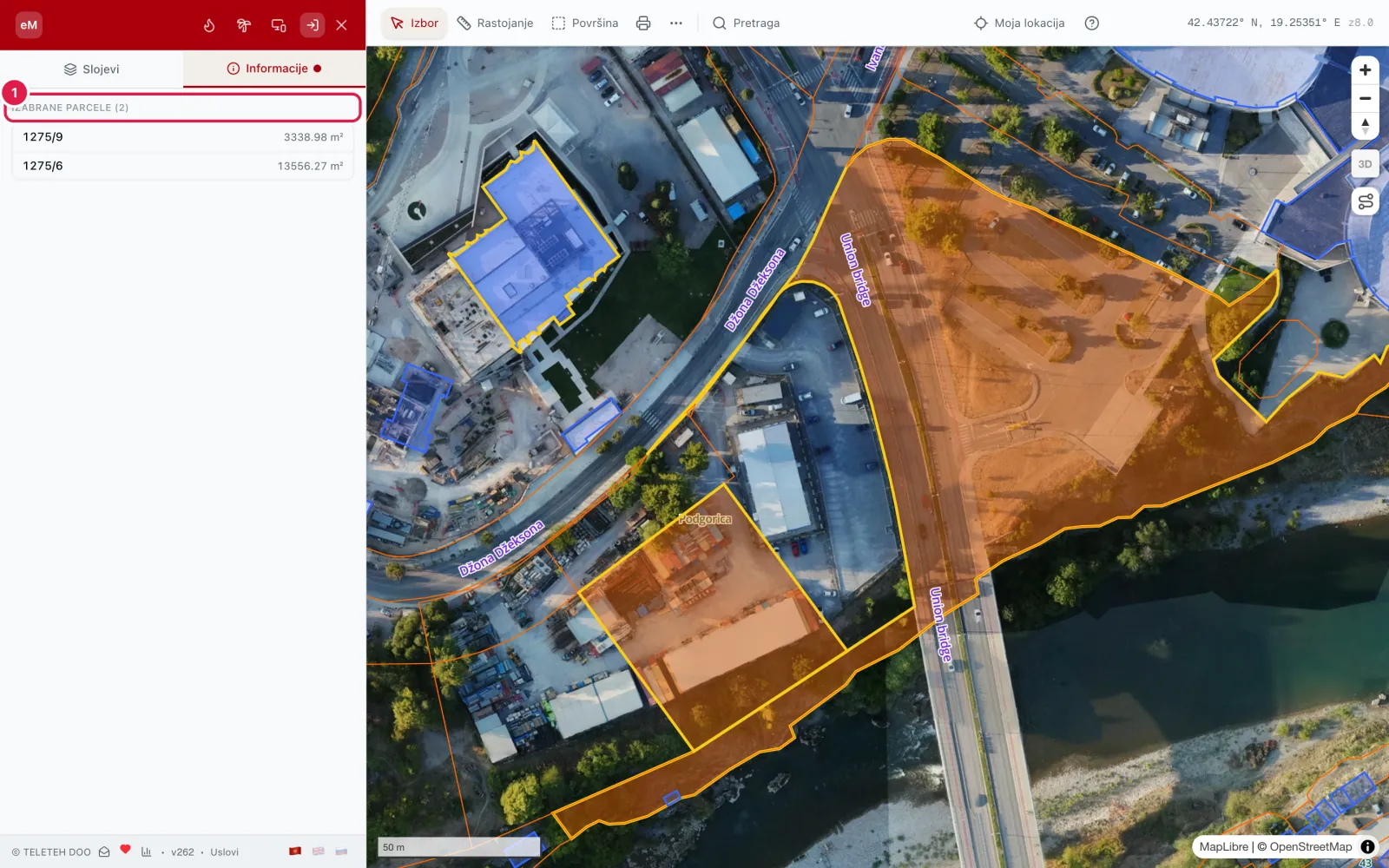
- 1The list of selected parcels.
Cadastre records
The cadastre button ("Podaci iz katastra") loads the official records from eKatastar, the Real Estate Administration's system: the property sheet (LN) or land holding sheet (PL), right holders with their shares, parcel parts, buildings, encumbrances and restrictions, and pending applications.
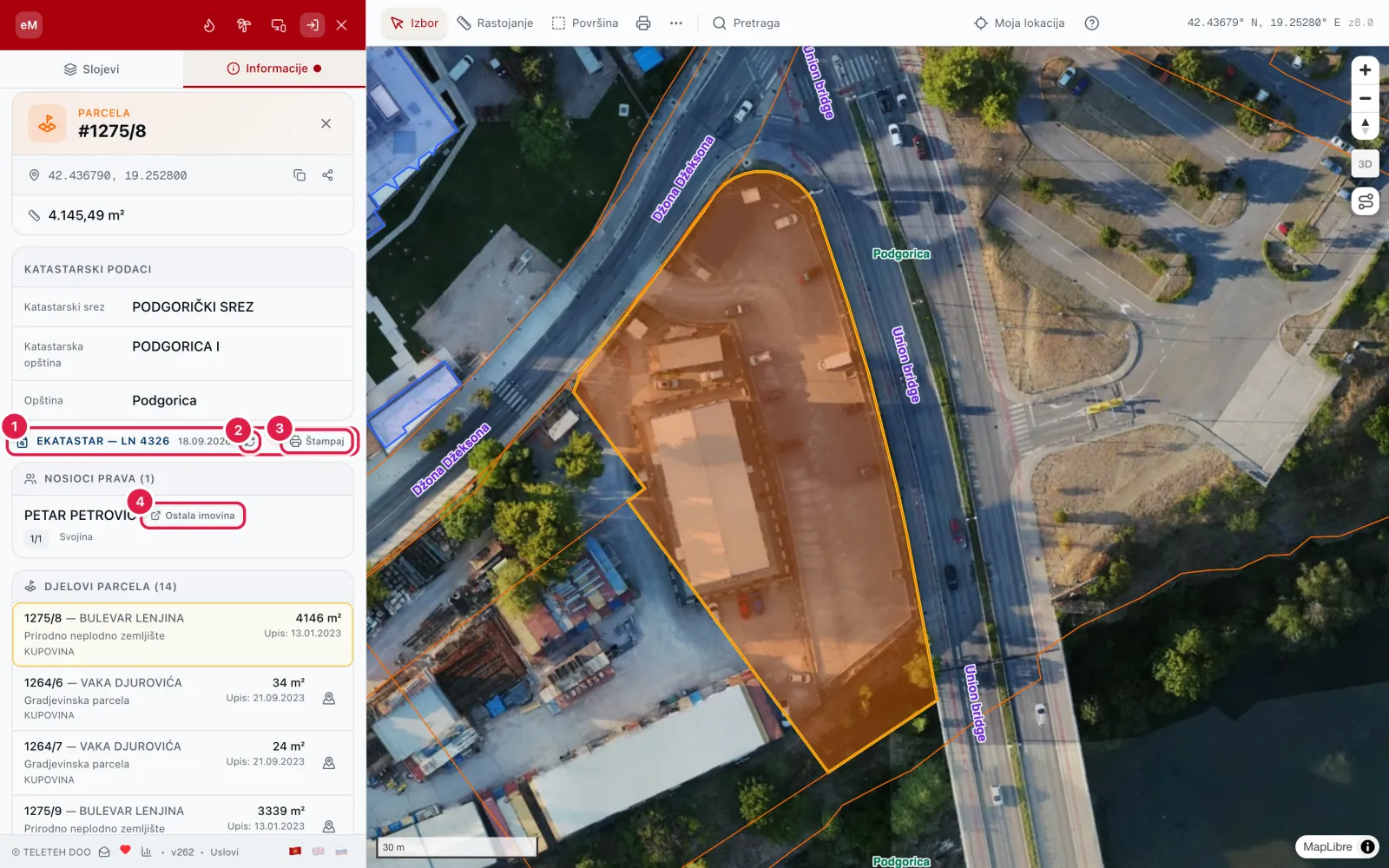
- 1Sheet number and the date the data was retrieved.
- 2Refresh — asks eKatastar for newer data.
- 3Print — an extract prepared for printing.
- 4Other property — what else this owner holds (see the next chapter).
Owner's other property
The Other property button next to an owner's name shows what else that person holds, in every municipality.
- 1Open the cadastre records of a parcel.
- 2Click Other property next to the owner's name.
- 3Open a municipality, then a sheet — you see the parcels on that sheet.
- 4Click a parcel to show it on the map.
For surveyors: coordinates and survey reports
For survey reports (elaborati), eMapa gives the coordinates of a parcel's corner points in three coordinate systems and three formats.
- 1Click a parcel.
- 2In the Info tab, open Geodetic data ("Geodetski podaci").
- 3Choose the coordinate system, then the format: TXT, CSV or DXF. The file downloads immediately.
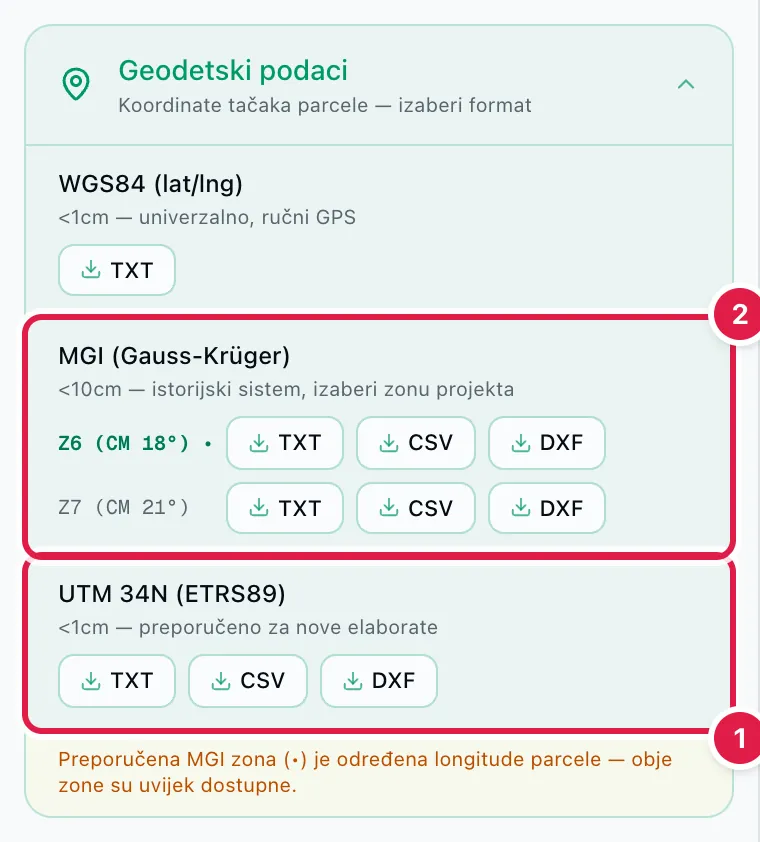
- 1UTM 34N (ETRS89) — accuracy under 1 cm; recommended for new survey reports.
- 2MGI Gauss-Krüger — the historical system, accuracy under 10 cm; choose the project's zone (Z6 or Z7).
Measuring distance
- 1Click Distance in the toolbar (1).
- 2Click the map to place points. The length appears in the toolbar and grows with each point.
- 3The panel shows the length of each segment and the parcels it crosses.
- 4Download the report as PDF (3) or XML (4).
- 5The bin (2) clears the measurement. Select returns to ordinary parcel clicks.
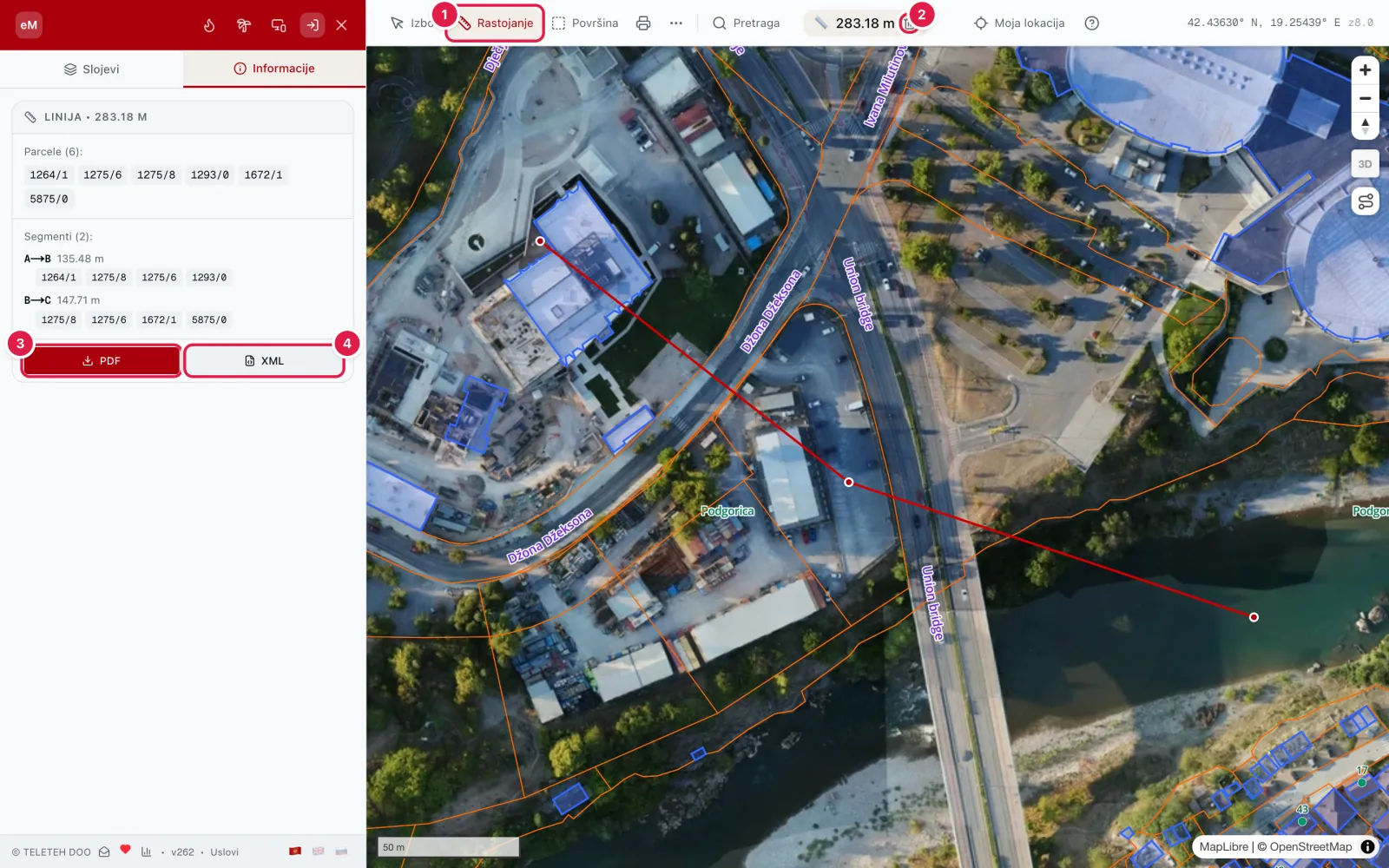
- 1The Distance tool.
- 2Clear the measurement.
- 3PDF report.
- 4XML report.
Measuring area
- 1Click Area in the toolbar (1).
- 2Click the map to place the corners. Click the first point again to close the shape.
- 3The area appears in the toolbar, and the panel lists the parcels inside it.
- 4Download the report as PDF (3) or XML (4).
- 5"Analiziraj ovaj obuhvat" (2) opens cadastre statistics for the drawn area.
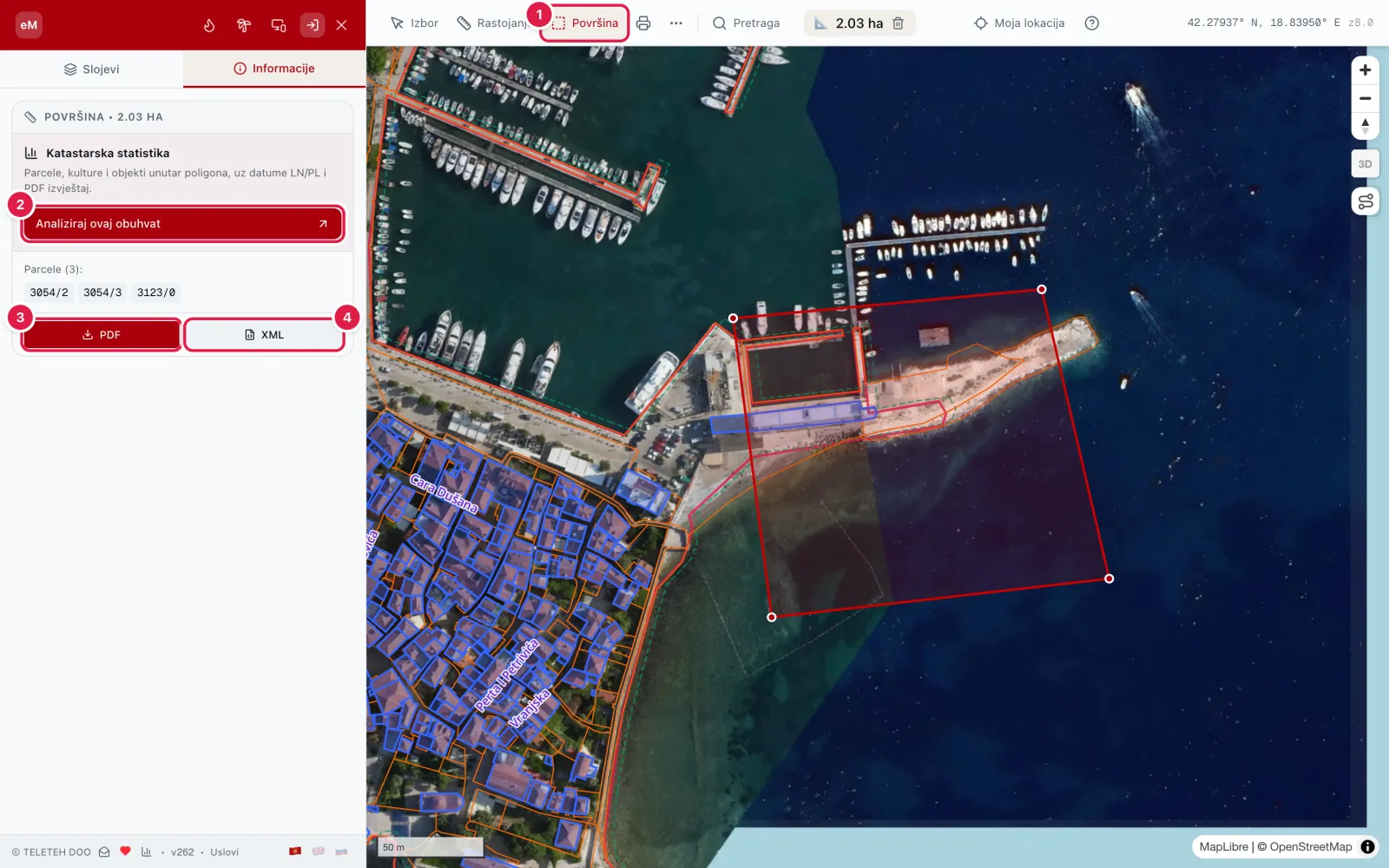
- 1The Area tool.
- 2Analyse this area — cadastre statistics for it.
- 3PDF report.
- 4XML report.
Cadastre statistics
Cadastre statistics add up parcels, land and buildings in a chosen area: by cadastral municipality or settlement, or inside a boundary you draw. It is meant as groundwork for planning documents. The result is a set of tables, notes on data coverage and freshness, and a PDF report.
The report also shows what the area overlaps, with the area, the share of the boundary and the number of parcels in each zone: land use under PPCG 2040; protection zones and spatial restrictions (protected nature, UNESCO, military use, mineral resources, hydrocarbons); environmental constraints (national parks, the Emerald network, vulnerable and sensitive areas) with the number of polluters, discharges, landfills and treatment plants inside the area; flood zones for floods expected once in 10, 100 and 500 years; water-source protection zones (zones I, II and III, with the source name); and soil types from the soil map.
The Environment, terrain and farming block sums up the whole area, weighted by parcel area: average elevation and slope, the share of steep ground, land cover, forest density, what satellites see growing, soil pH, the growing season, suitable crops, solar plant yield and wind.
The statistics page itself describes the method in detail. Calculating requires signing in.
- 1Open statistics with the chart icon at the bottom of the panel, or with "Analiziraj ovaj obuhvat" after measuring an area.
- 2Choose the mode: Municipality / KO (1) or Plan boundary (2).
- 3For a municipality: choose it (3), and optionally a KO or settlement. For a boundary: draw it on the map with the Area tool, or import GeoJSON.
- 4Click Calculate (4). A whole municipality takes a little longer.
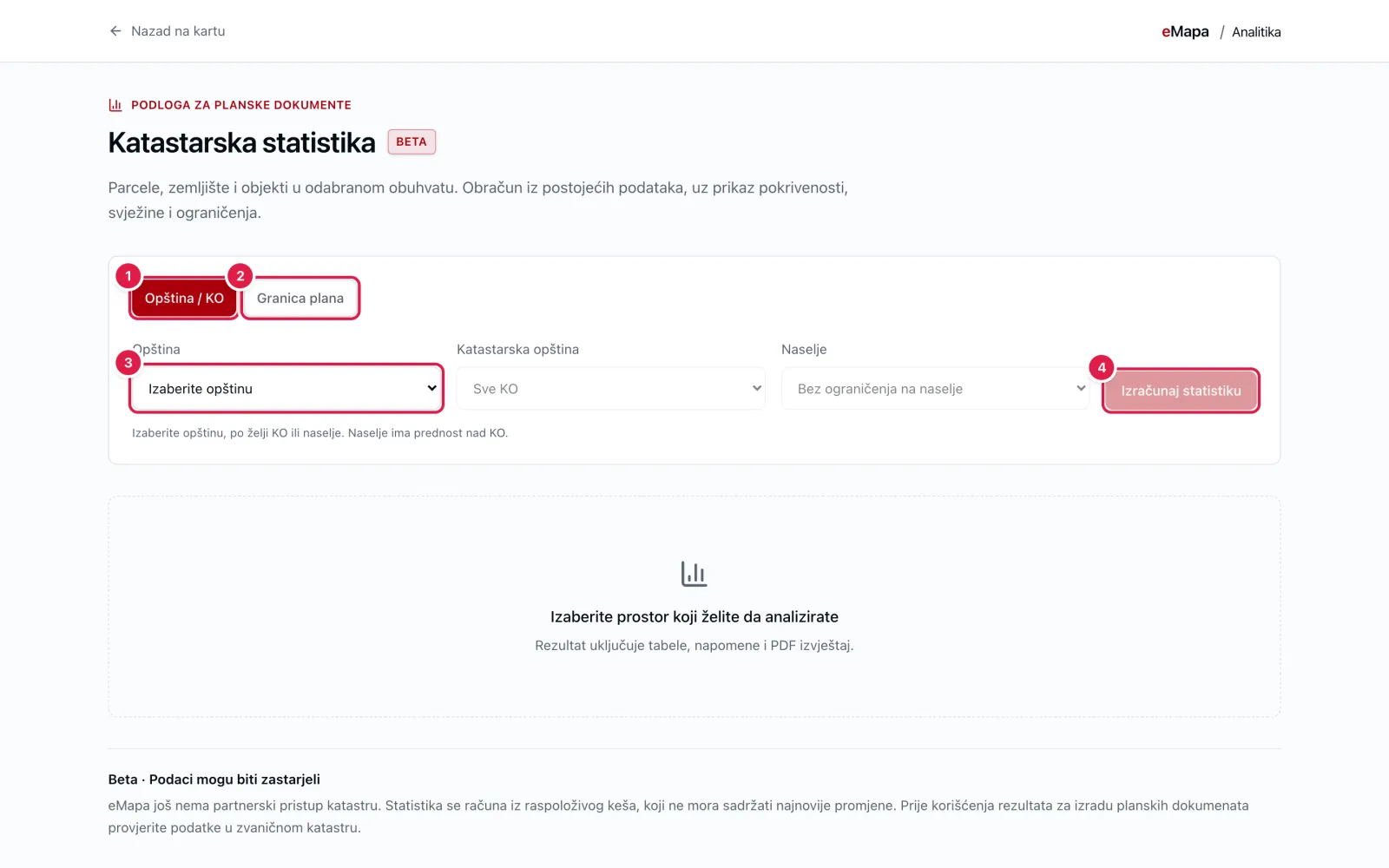
- 1By municipality or KO.
- 2Inside a drawn or imported boundary.
- 3Choose the municipality.
- 4Run the calculation.
Route with elevation
To plan a walk, a hike or a road alignment: length, ascent, descent, slope and the elevation profile.
- 1Click Route with elevation on the right side of the map (1).
- 2Zoom in (zoom 16 or closer) and click to add route points.
- 3The panel shows distance, ascent, descent, maximum slope and the elevation profile. The line colour shows the slope of each segment.
- 4Open the route in Google Maps (4) or share it as a GPX file (5) for navigation.
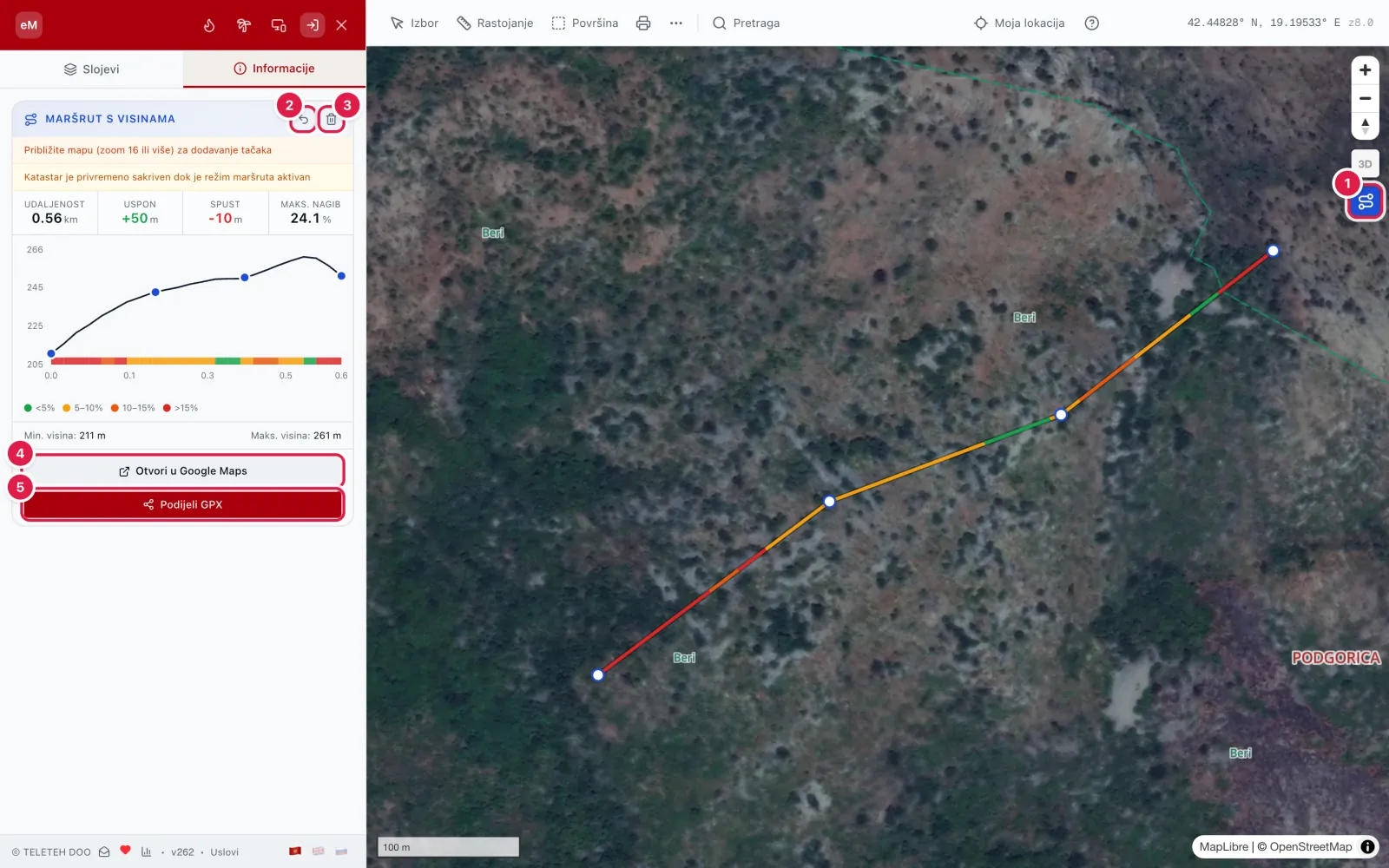
- 1Turn route mode on and off.
- 2Undo the last point.
- 3Clear the route.
- 4Open in Google Maps (up to 10 points).
- 5Share a GPX file.
Exporting the map to PDF and DXF
Export takes what is on the map right now. For a more detailed export, zoom in first.
- 1Zoom to the area you need (zoom 16 or closer; at a lower zoom the first click zooms in for you).
- 2Click the printer button in the toolbar.
- 3Tick the layers to export (1).
- 4For DXF, choose the coordinate system (2).
- 5Click DXF (3) for CAD software or PDF (4) for printing.
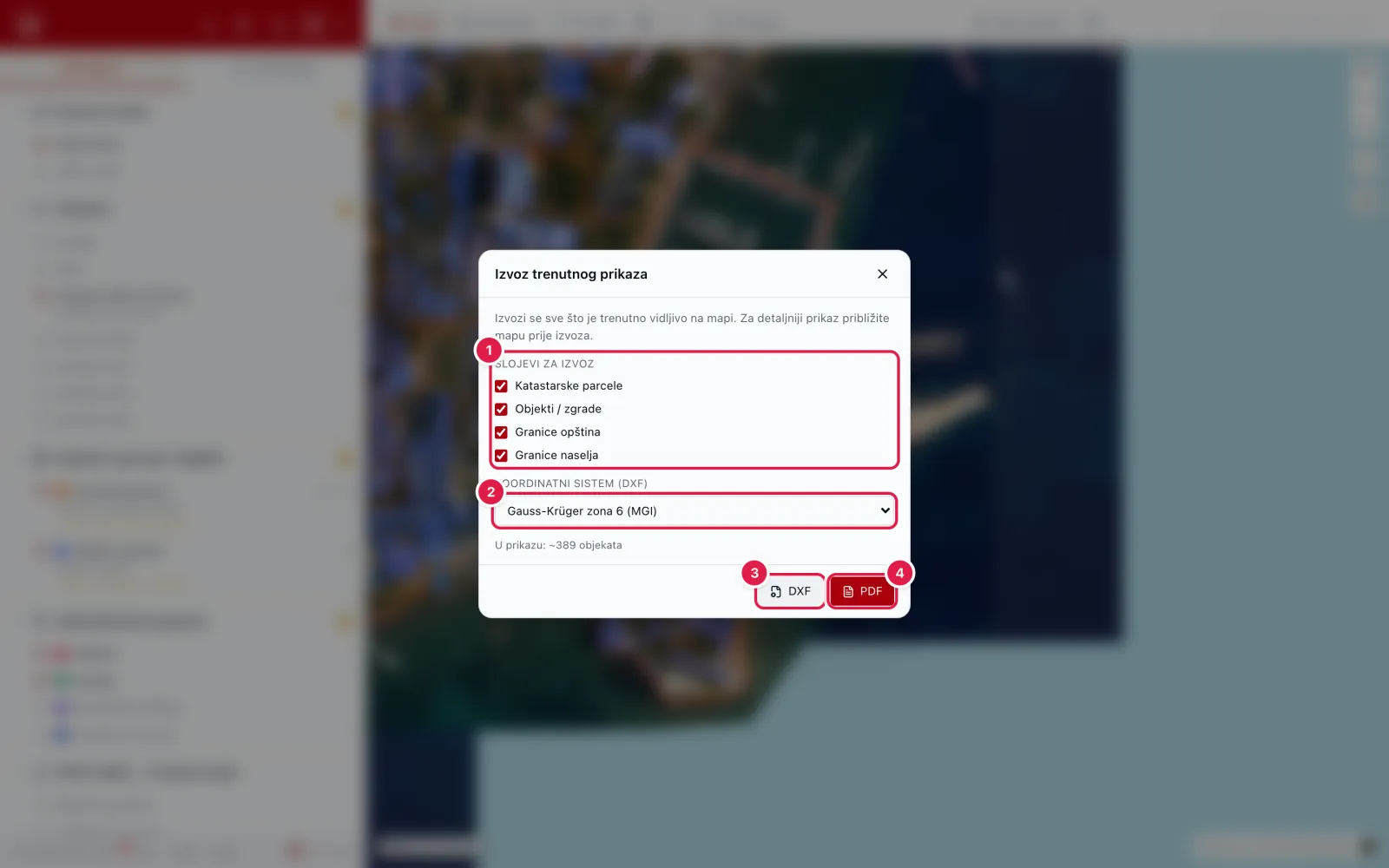
- 1Layers to export.
- 2Coordinate system for DXF.
- 3Download DXF.
- 4Download PDF.
Importing a GPS track
- 1Click More tools (three dots) in the toolbar (1).
- 2Choose Import GPS track (2).
- 3Pick a GPX, TCX or CSV file. The track is drawn on the map.
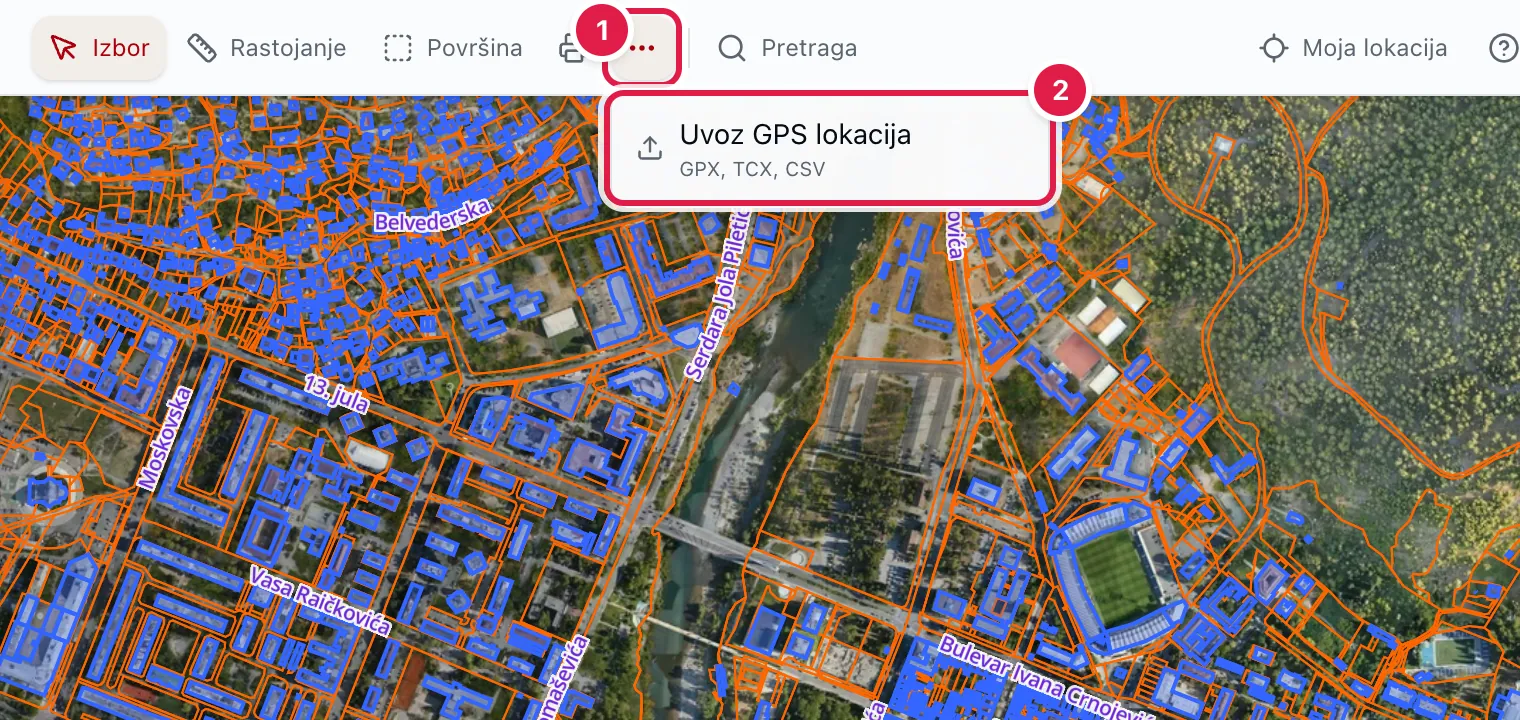
- 1More tools.
- 2Import GPS track.
PPCG 2040 spatial plan
The PPCG 2040 group shows the Spatial Plan of Montenegro to 2040: land use, protected areas, planned infrastructure, renewable energy and spatial restrictions.
When a layer is on, its legend appears under it. Clicking a parcel tells you in the Info tab which land use applies to it.
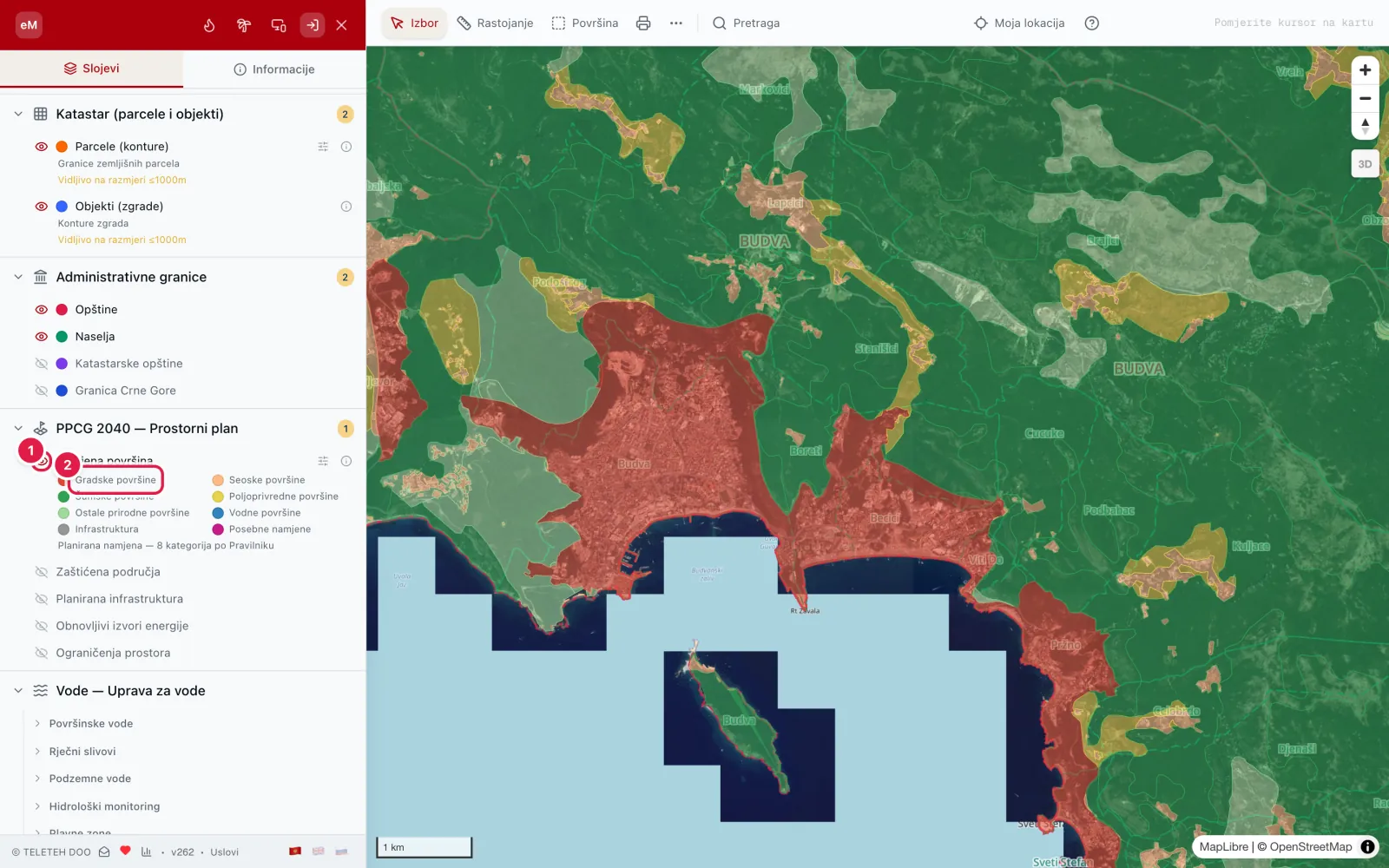
- 1Turn on the land-use layer.
- 2Legend — the colour of each land use.
Water, nature and risks
The Water group shows rivers, catchments, groundwater, monitoring stations and flood zones for floods expected once in 10, 100 and 500 years. The colour of a flood zone shows the water depth.
The Nature and ecology group shows air quality, bathing water quality, protected areas, environmental pressures, soil types, forest cover and the pollen forecast.
The Risks group shows active fires, earthquakes from the last 30 days and drought. Clicking a station or an area shows its details and the data source.
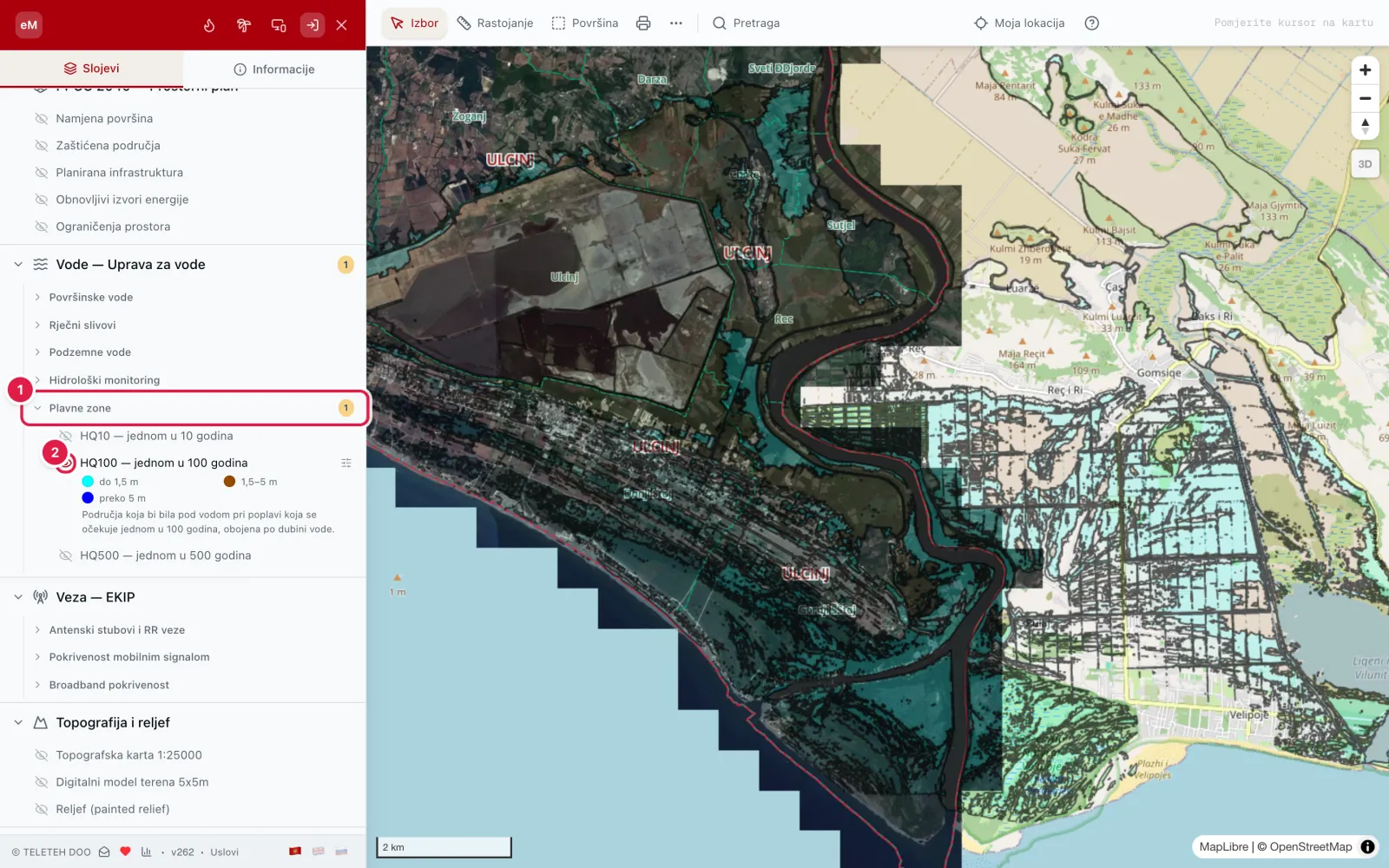
- 1The Flood zones subgroup in the Water group.
- 2Turn on HQ100 — a flood expected once in 100 years.
Fire mode
Fire mode shows active fires from satellite imagery and water sources for firefighting. The panel lists the fires with burned area, fire power and the time of the latest satellite pass.
- 1Click the flame button in the red header (1).
- 2Optionally show only fires in Montenegro (2) or hide isolated hotspots (3).
- 3Click a fire in the list or on the map. Its details open: fire power, estimated burned area, confidence, wind at the fire, the nearest water sources with their distance, the time of the first and latest detection, and how long it has lasted.
- 4The same button turns the mode off and restores your layers.
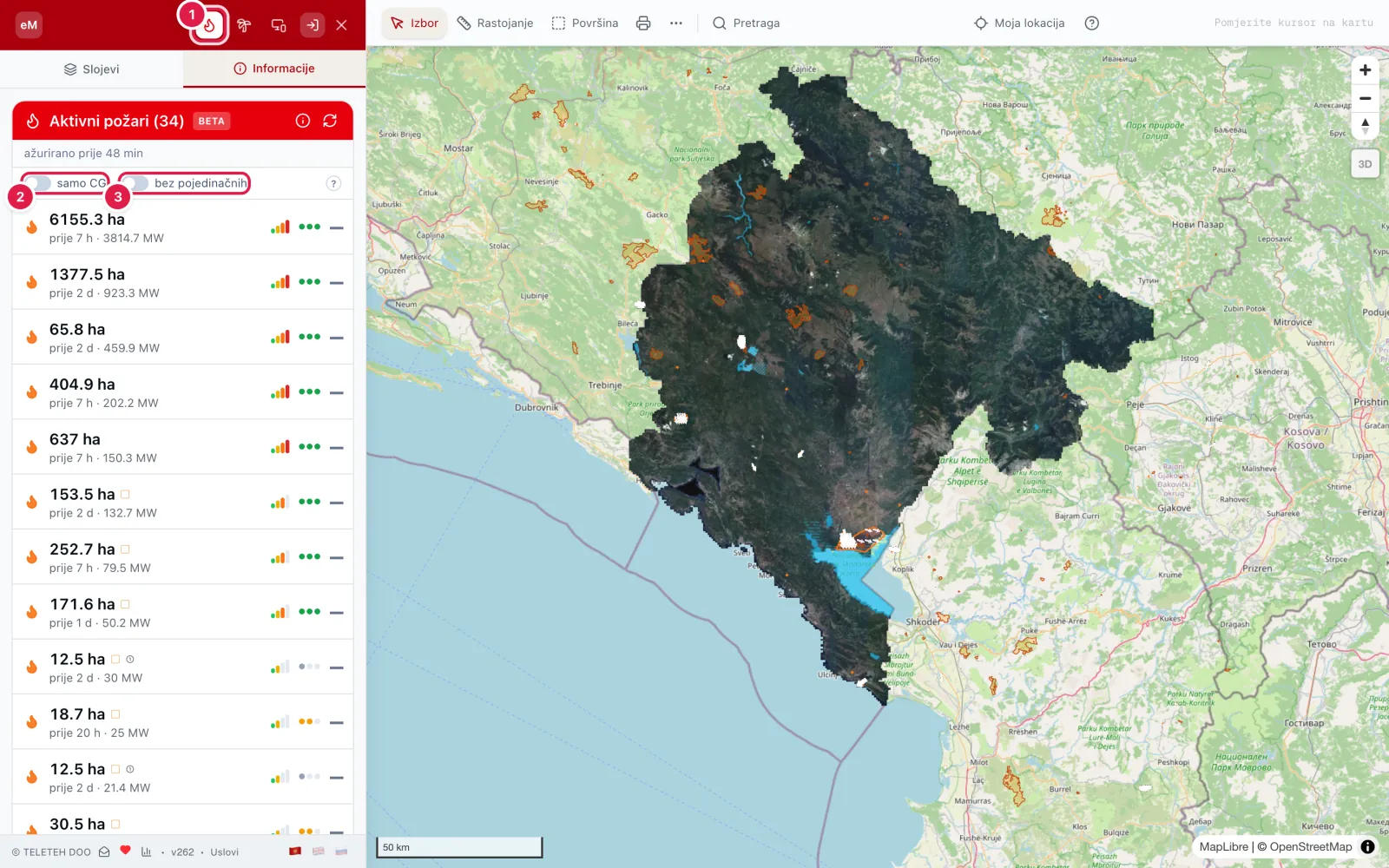
- 1Turn fire mode on and off.
- 2Only fires in Montenegro.
- 3Hide isolated hotspots.
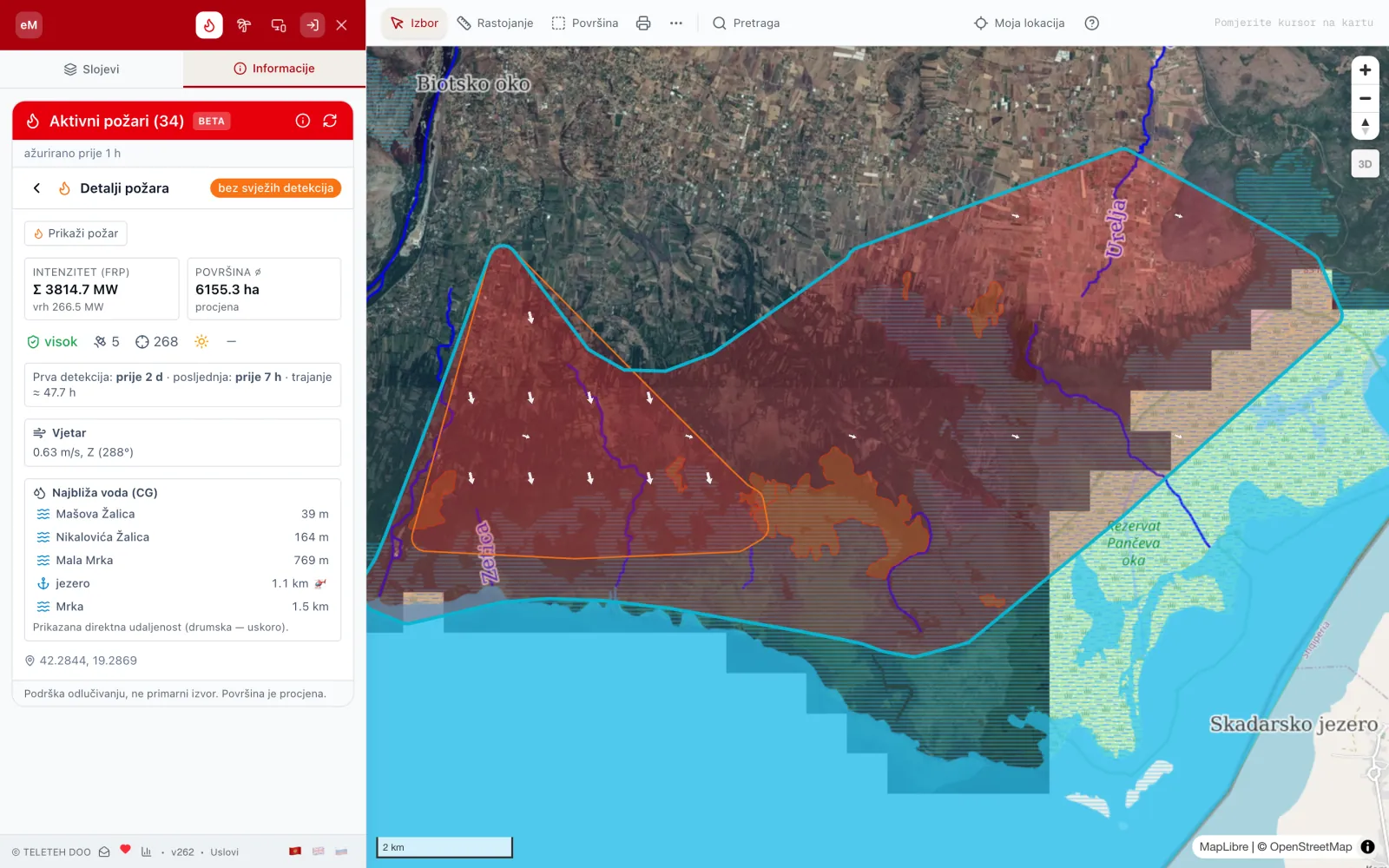
Markers in the fire details
- visok
- Confidence: low, medium or high ("nizak", "srednji", "visok"). It rises when several different satellites see the same hotspot; a single detection is always low.
- 5
- How many satellite sensors saw this fire (VIIRS on the SNPP, NOAA-20 and NOAA-21 satellites, and MODIS).
- 170
- How many satellite detections (points) were joined into this fire over the last 24 hours.
- The latest detection was in daytime.
- The latest detection was at night.
- Trend: a new fire.
- Trend: growing compared with the previous satellite pass.
- Trend: stable.
- Trend: declining.
Flame colour in the list of fires
- Active — a satellite saw it within the last 6 hours.
- No fresh detections — the latest was 6 to 48 hours ago.
Nearest water (distance is a straight line, not a route)
- Lake or reservoir.
- River.
- Spring.
- Suitable for scooping water by helicopter or Canadair.
- Seasonal source — it may dry up in summer.
Sea mode
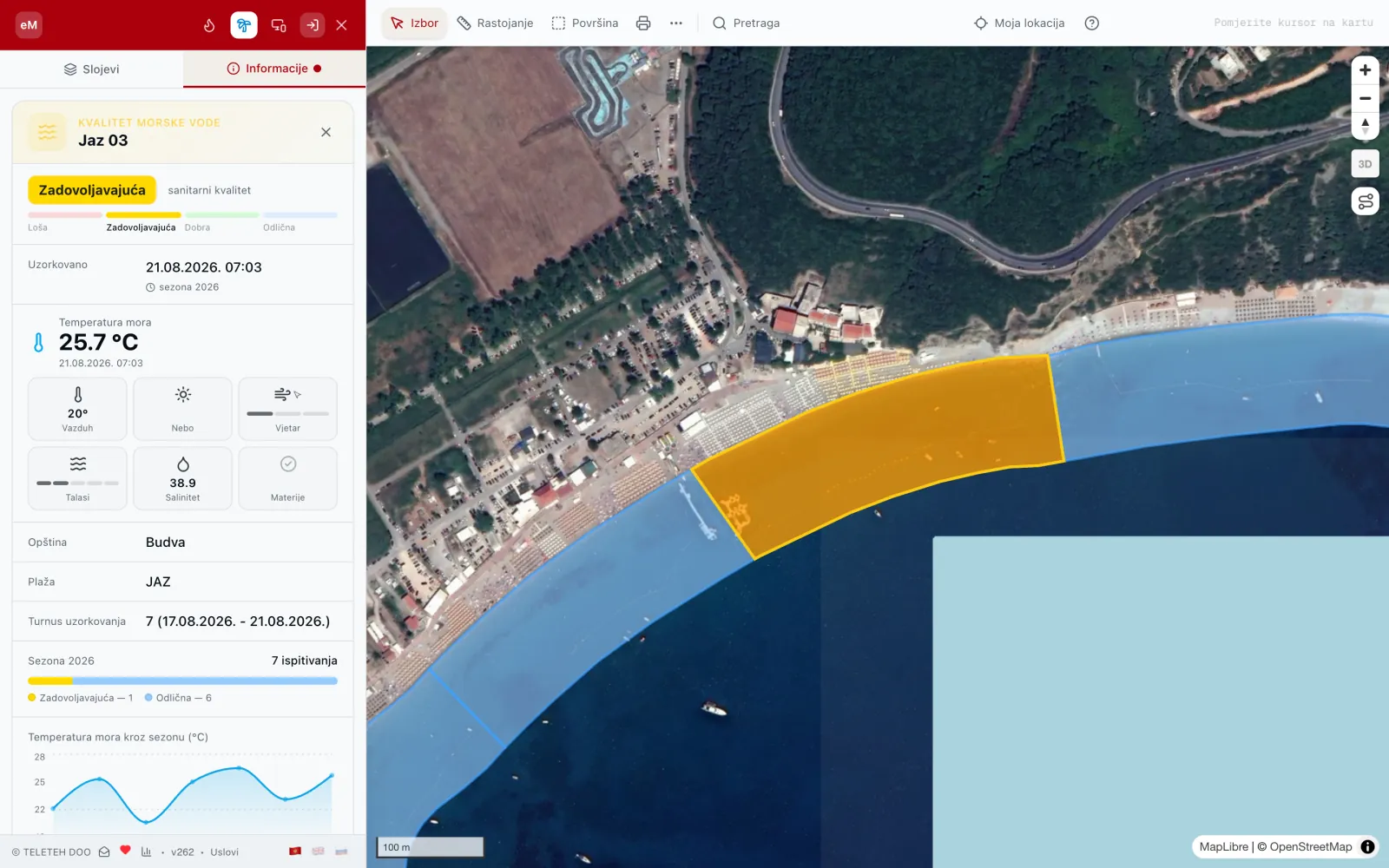
Sea mode shows bathing water quality at 114 public beaches, from the official sampling. Each beach has a grade (excellent, good, satisfactory, poor), the sampling date and the water temperature.
- 1Click the palm button in the red header (1).
- 2Choose a municipality (2) or show only the weaker grades (3).
- 3Click a beach. Its grade, sampling date, sea and air temperature, wind, waves, salinity and the grades through the whole season open.
- 4On a phone, the beach card has a Route button ("Ruta"): one tap opens Google Maps with the way to the beach already drawn.
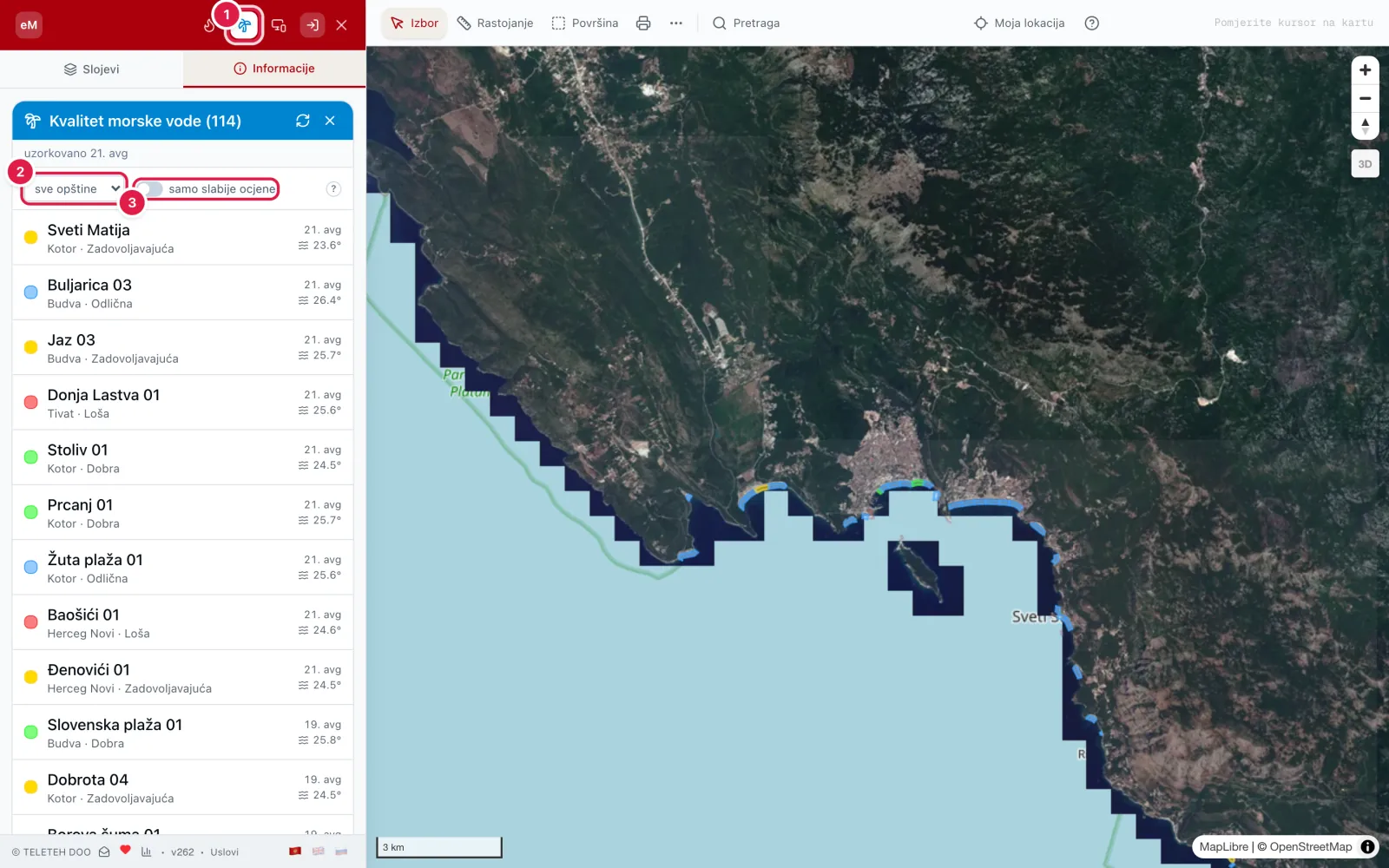
- 1Turn sea mode on and off.
- 2Choose the municipality.
- 3Only the weaker grades.
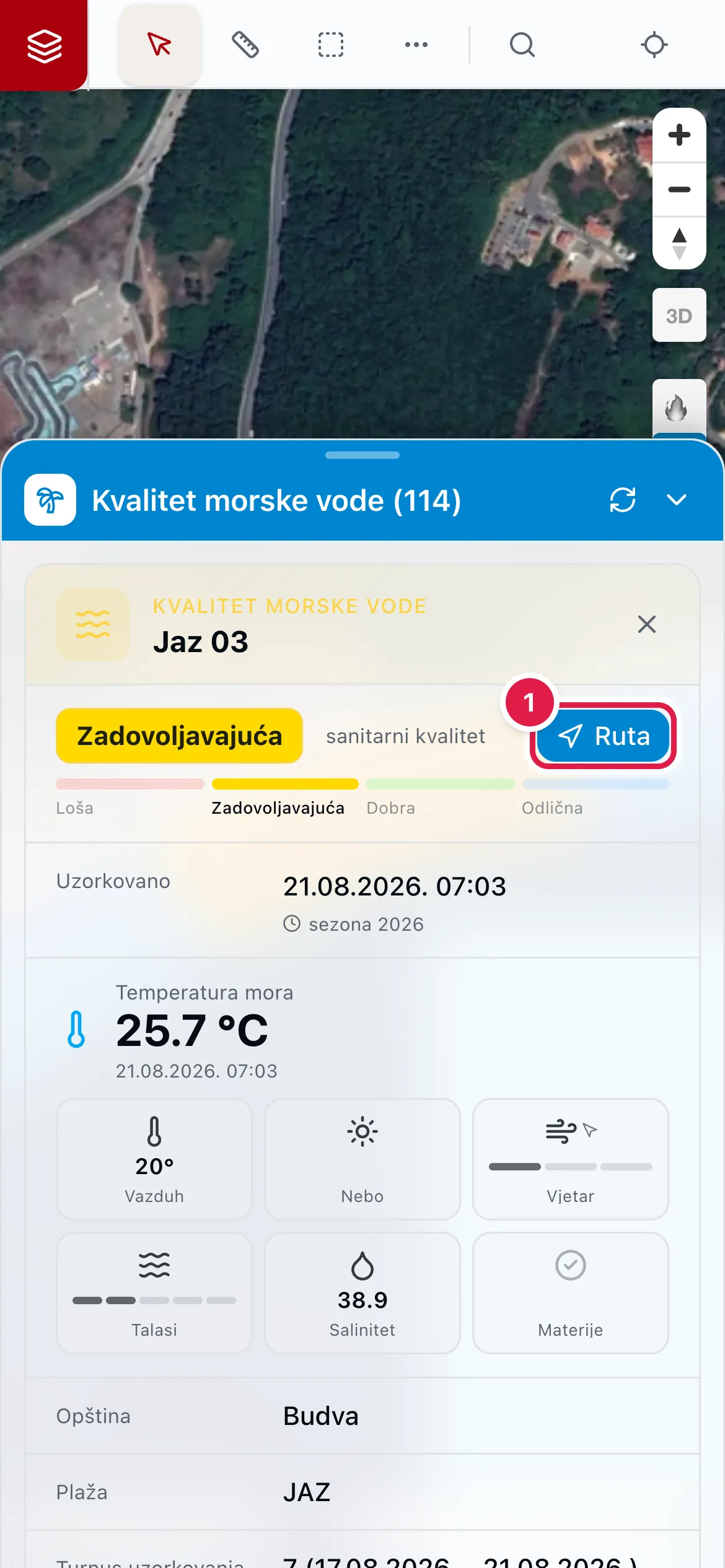
- 1Route ("Ruta") — opens Google Maps with the way to the beach from where you are.
Language, app and contact
Install app in the red header adds eMapa to the home screen of your phone or computer as a separate app.
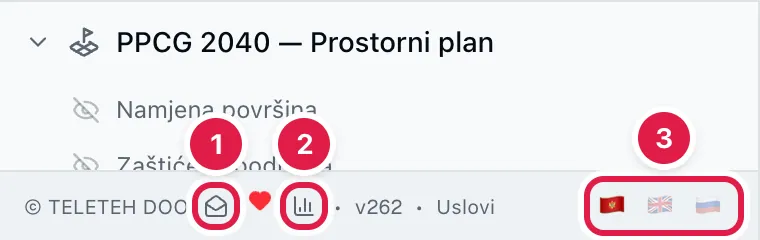
- 1Contact form — questions, suggestions, bug reports.
- 2Cadastre statistics.
- 3Language: Montenegrin, English or Russian. Your choice is remembered.
About us
We are an independent project, not a state body. It grew out of a simple task: to open access to cadastre data for everyone.
Then we saw a common problem. There is no ready-made solution for this task. Each municipality gets its own funding and builds its own solution. These solutions are completely different, and they cannot be brought together. The appearance can be improved, but nobody will use such a service anyway. It looks nice, but it is not clear who it is made for.
We start from needs, not from beauty. Function comes first: what a citizen, a surveyor, an architect or a designer needs. Our map also looks good, but we do not need excess decoration. We could add it, but it slows the map down, and then nobody uses it.
Our goal is to bring the data about Montenegro together again in one place. Access to it must be fast and simple.
Everything you see is the result of work with planning specialists, surveyors, architects, other professionals and ordinary people. We are always open to cooperation.
If you have questions or wishes, write to us through the contact form below. If you just want to talk or meet for a coffee, write to us too.
Didn't find your answer? Send us a question through the contact form — we answer every message.